 Kennel Connection Support


Setting up iDogCam Integration
Kennel Connection integrates with iDogCam cameras, allowing you to assign specific cameras to runs, daycare rooms, play areas, and outdoor spaces. Optional fees can be charged for camera access, with availability controlled by your facility.
Contact iDogCam
New accounts: 424-229-2146, Option 4 (Sales)
Existing accounts integration: 424-229-2146, Option 1 (Support) or support@iDogCam.com
Initial Setup
Navigate to Manage > iDogCam to configure your integration:
- Enter your Kennel ID and ERP Code provided by iDogCam
- Enable "Allow Clients to View Cams" when you're ready to go live
- Optionally set a "Default Cam Service" if you want to charge viewing fees
- Add a message to display when cameras are offline

Setting Up Camera Viewing Fees (Optional)
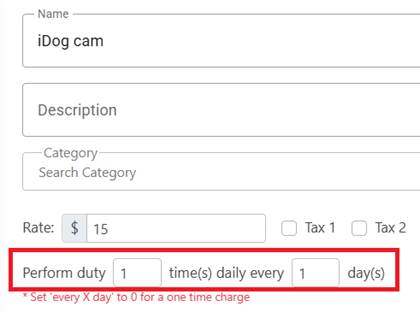
If you want to charge for camera access, create an Other Service. Important: The service needs to be set to perform duty 1 time every 1 day to ensure clients can view cameras throughout their entire boarding stay.
Adding Cameras for Boarding/Runs
To assign cameras to specific runs:
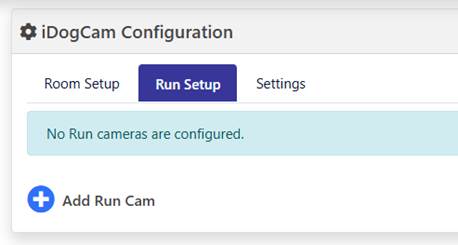
- Click Run Setup
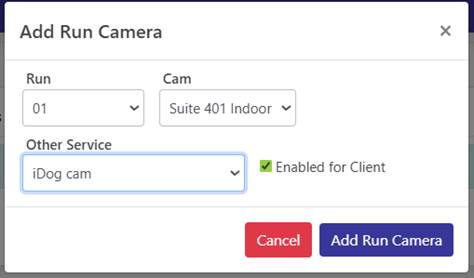
- Select "Add Run Cam"
- Assign the run and select the camera
- Optionally select an Other Service for charging
- Enable "Enabled for Client"
- Click "Add Run Camera"
Adding Cameras for Rooms/Exercises/Services
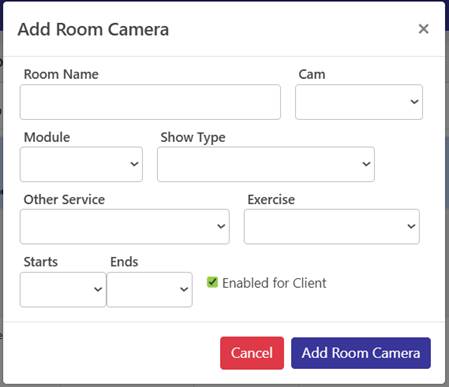
For daycare rooms, play areas, or service-specific cameras, use Room Setup:
- Enter a room name (this displays in the Client Portal)
- Select the camera (one per room/activity)
- Choose the module if applicable
- Select the show type:
- "During Service time" - Camera available only during specific activity hours
- "During entire stay if pet has service" - Available throughout stay if pet uses this service
- "Any pet checked in" - Available to all checked-in pets
- Set start/end times if using "During Service time"
- Enable "Enabled for client"

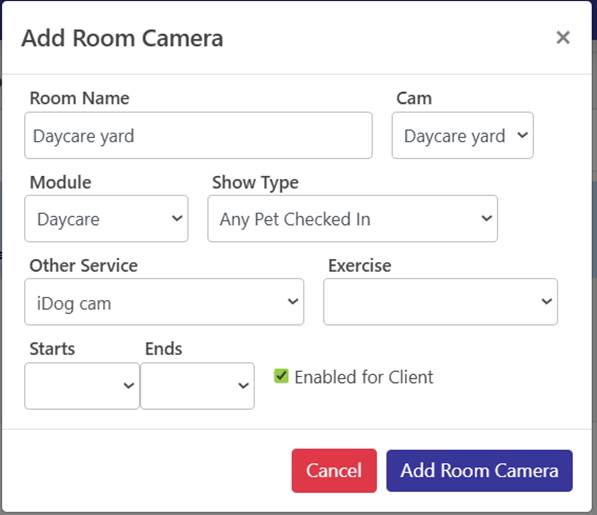
Example: Daycare Yard Camera Setup
- Name: "Daycare yard"
- Select the camera
- Module: Daycare
- Show type: "Any Pet Checked In"
- Enable for clients
- Click "Add Room Camera"
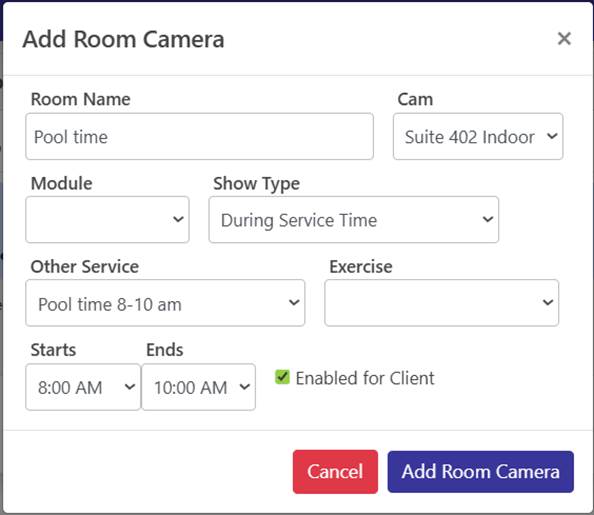
Example: Activity Camera (Pool Time 8am-12pm)
- Name: "Pool time"
- Select Module (or leave blank for optional add-ons)
- Show type: "During Service time"
- Select the Pool Time service
- Set start time: 8:00 AM
- Set end time: 12:00 PM
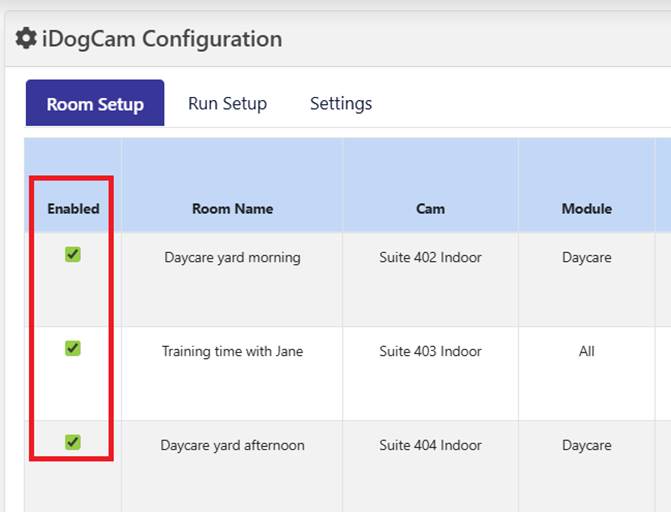
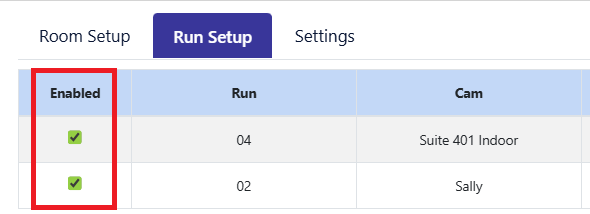
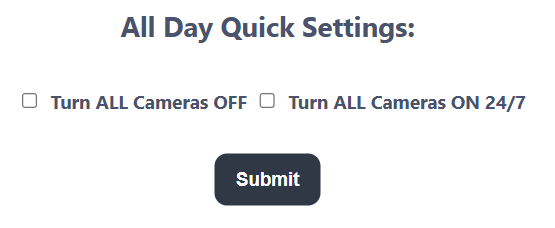
Disabling Cameras
Client Portal Access
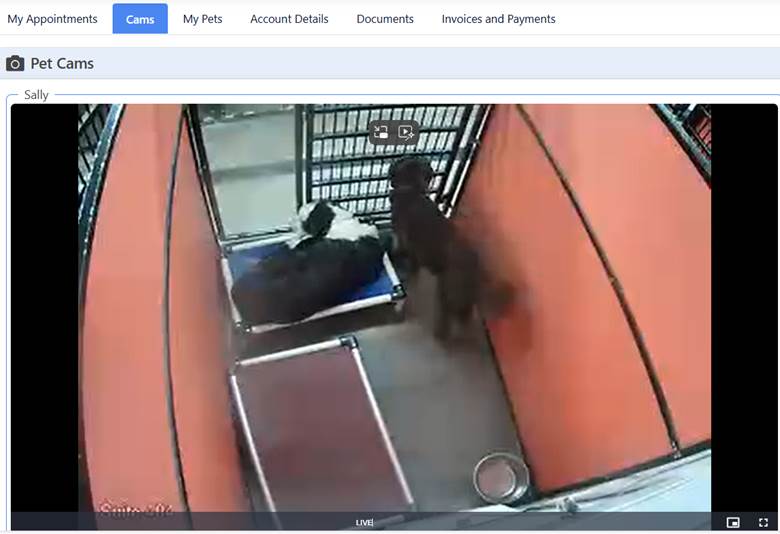
Once configured, your clients will see cameras under the "Cams" tab in their Client Portal. Camera availability is automatically restricted to checked-in pets and respects all your configured settings.